
This guide provides a step-by-step process for navigating and completing a MAC appeal efficiently. It outlines essential functionalities, such as searching for existing appeals, editing details, and submitting new appeals, ensuring users can manage their claims effectively. By following this guide, users can streamline their appeal process, minimize errors, and enhance their understanding of the necessary information required for successful submissions. It's an invaluable resource for anyone involved in pharmacy claims management.
1. Navigate to https://app.solorx.com/pharmacy-network
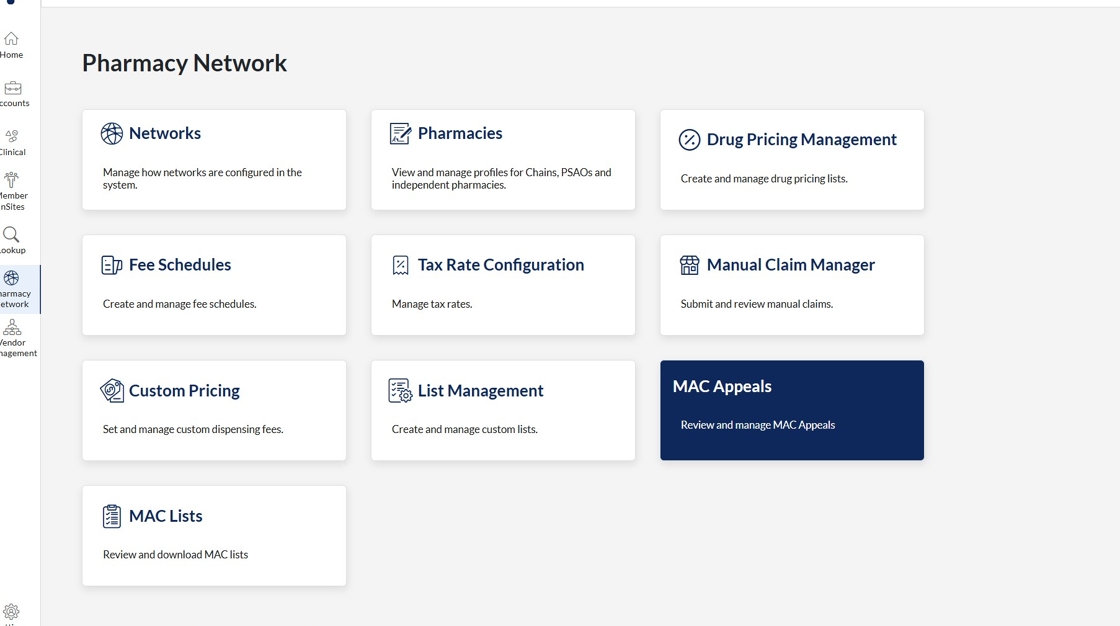
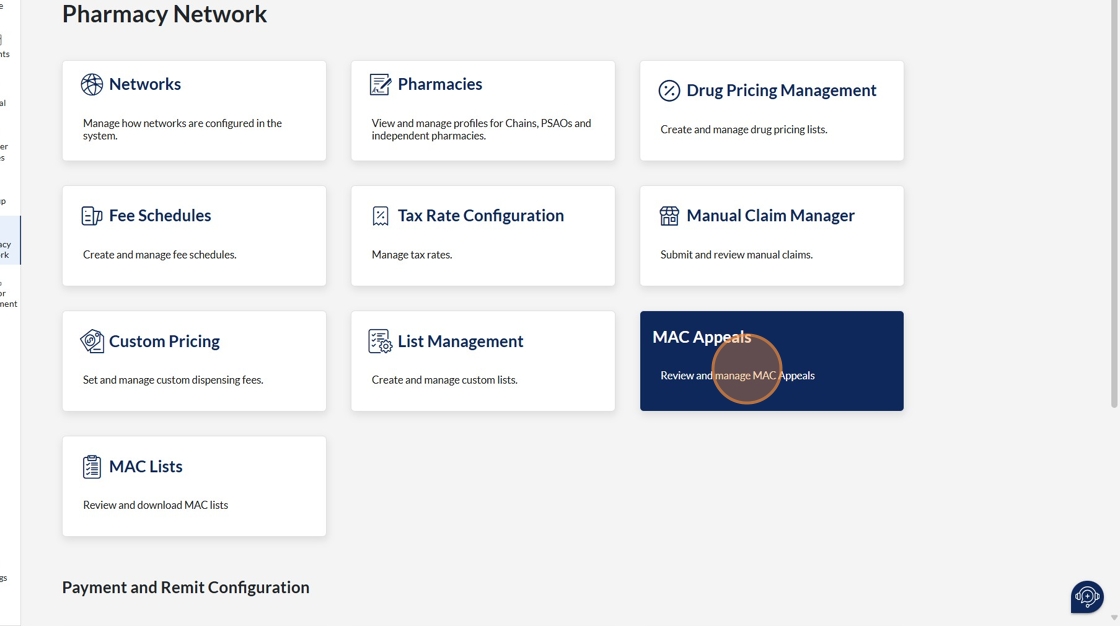
2. Click "The Mac Appeals" tile to continue onto the Mac Appeals process
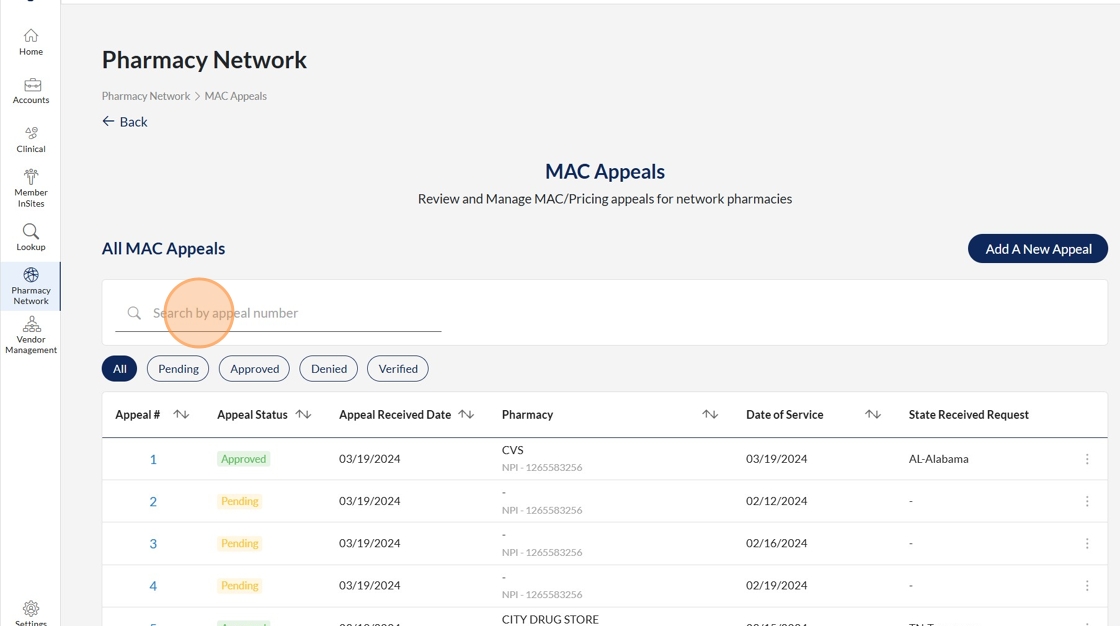
3. Users will have the functionality to search by appeal number in the search by appeal field.
4. As an example - if a user enters 12 in the search field, they will return Appeal #12
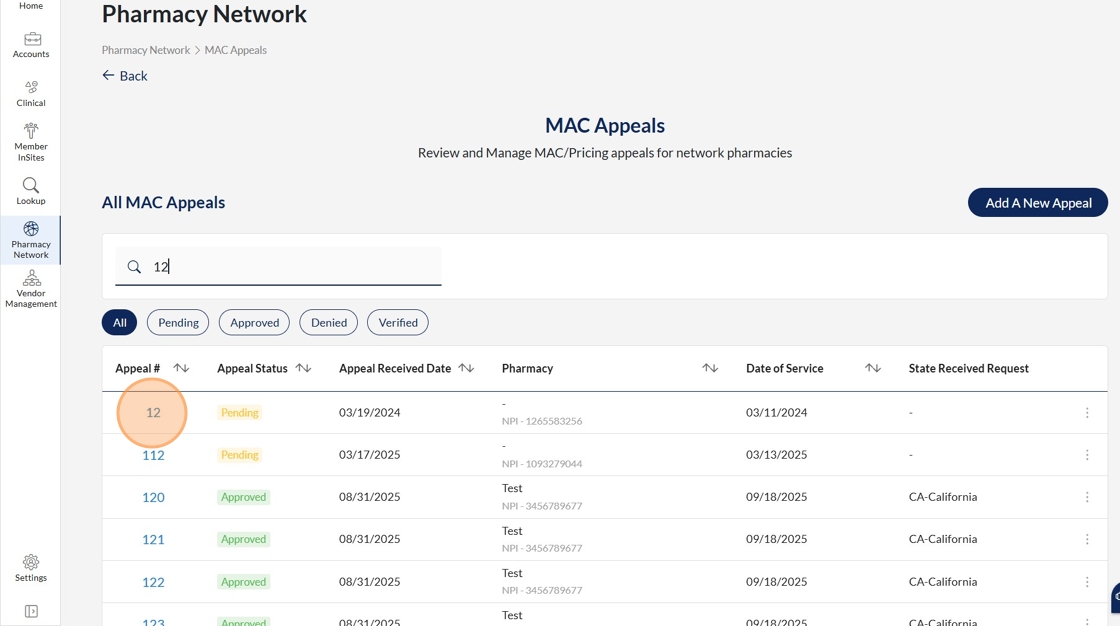
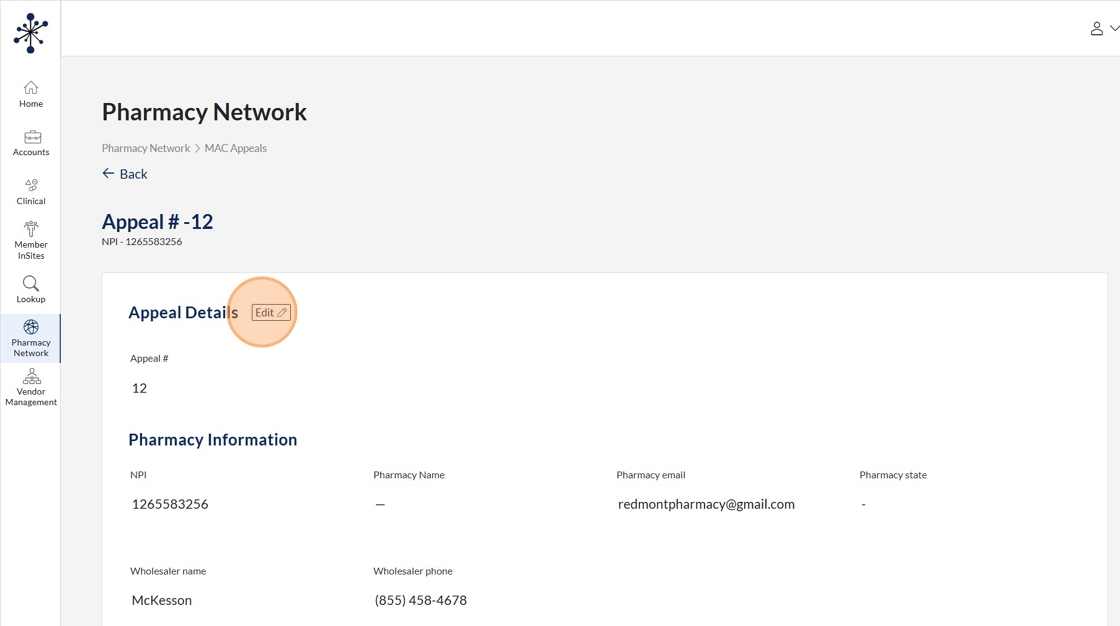
5. User is able to see all the details of Appeal #12 as well as being able to click on the edit functionality
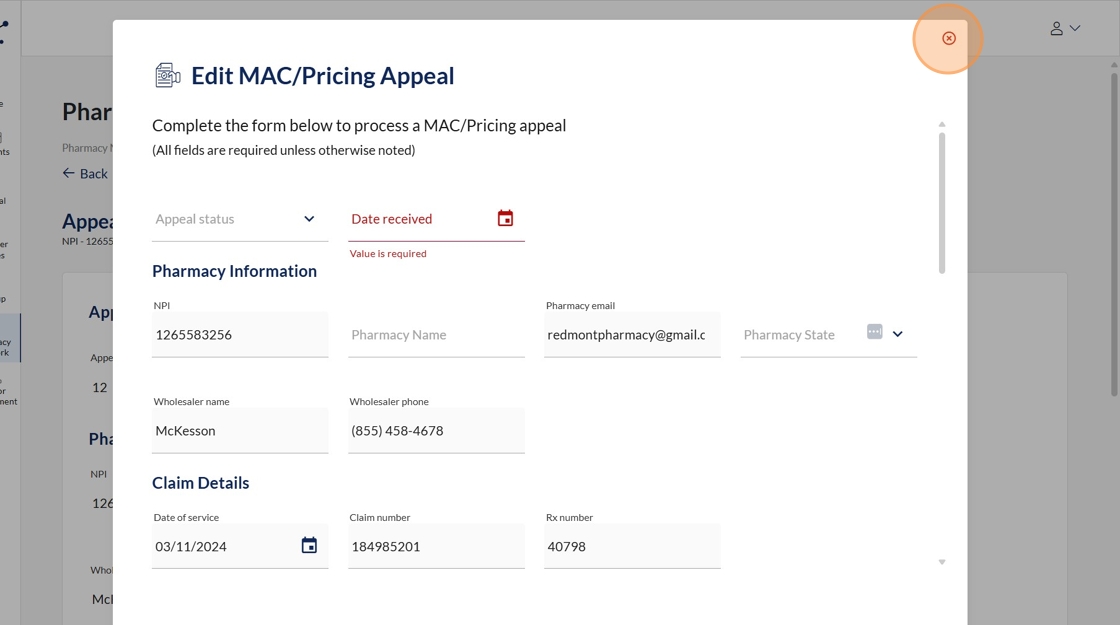
6. Edit functionality view. User is able to edit all the fields in the Mac Appeal form.
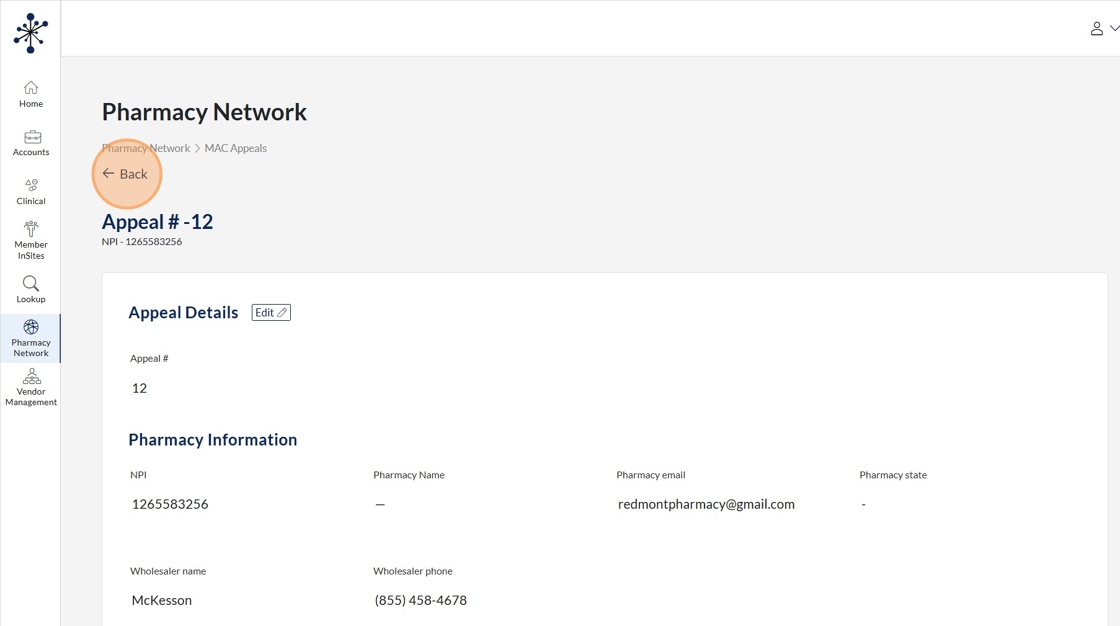
7. If a user clicks "Back" it will return them back to the main Mac Appeals home page.
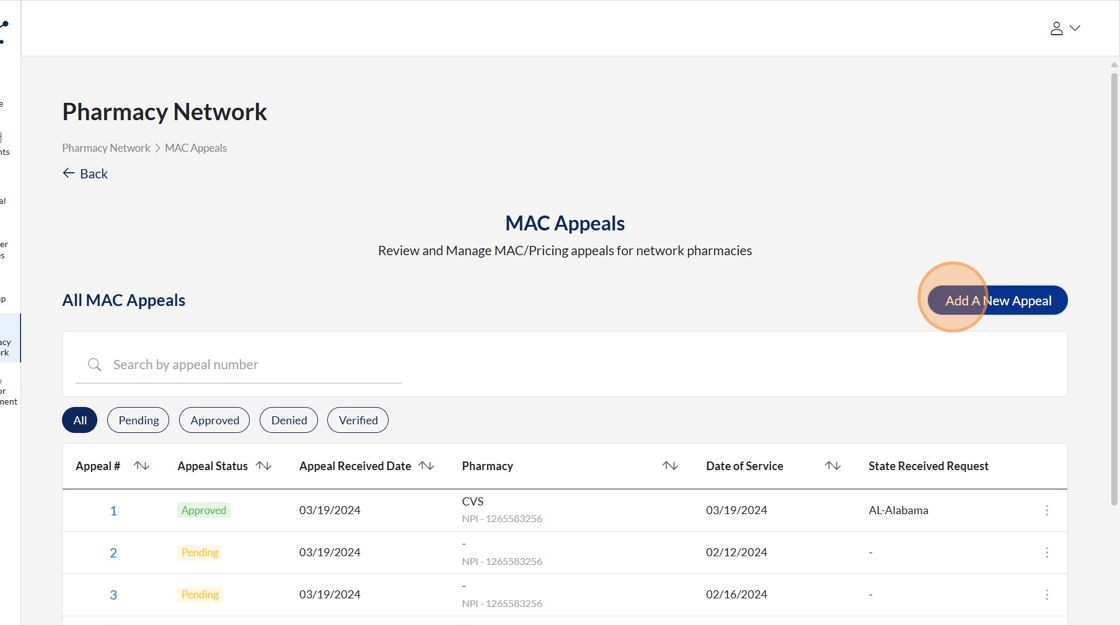
8. Click "Add A New Appeal" will give users the ability to start a new mac appeal.
9. The following fields are available in the mac appeal form for users to enter information or select options from a dropdown. Selecting the appeal status dropdown allow users to select approved or denied.
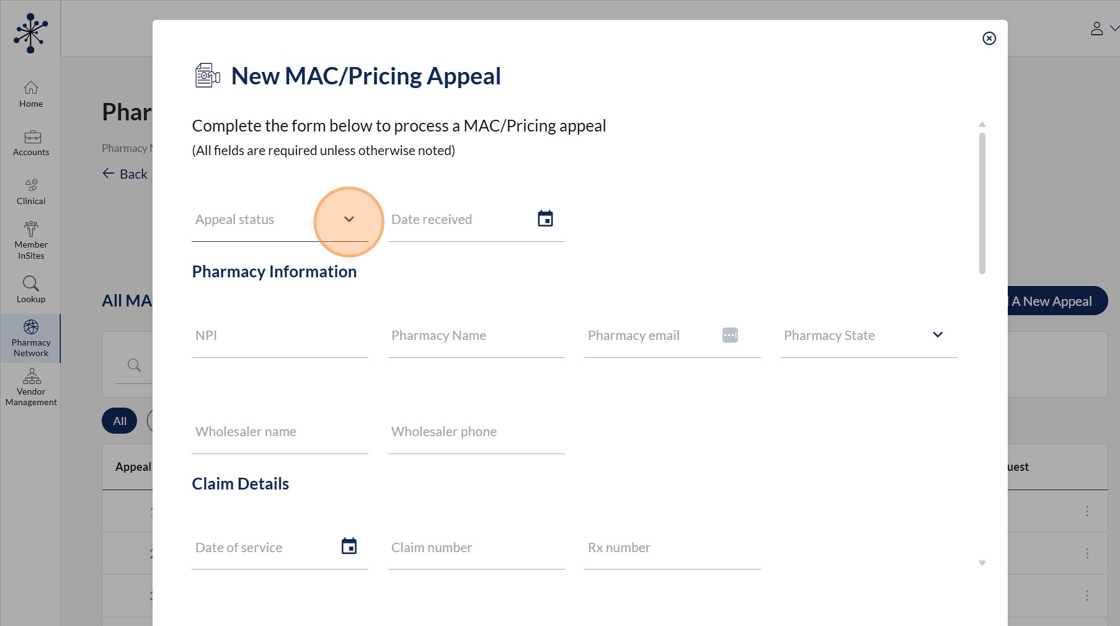
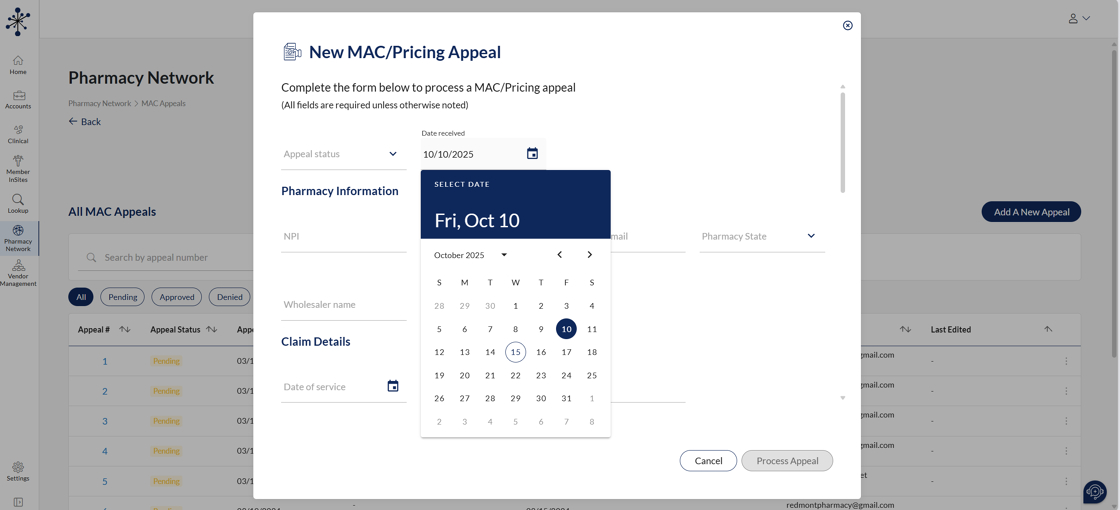
10. Users will select a date received under this field.
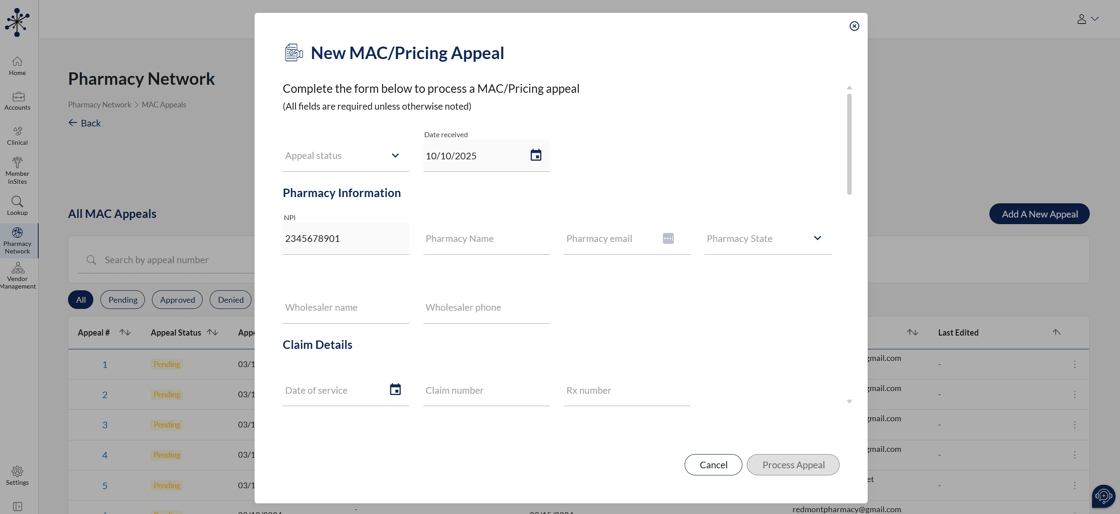
11. Users will enter NPI information under the NPI field.
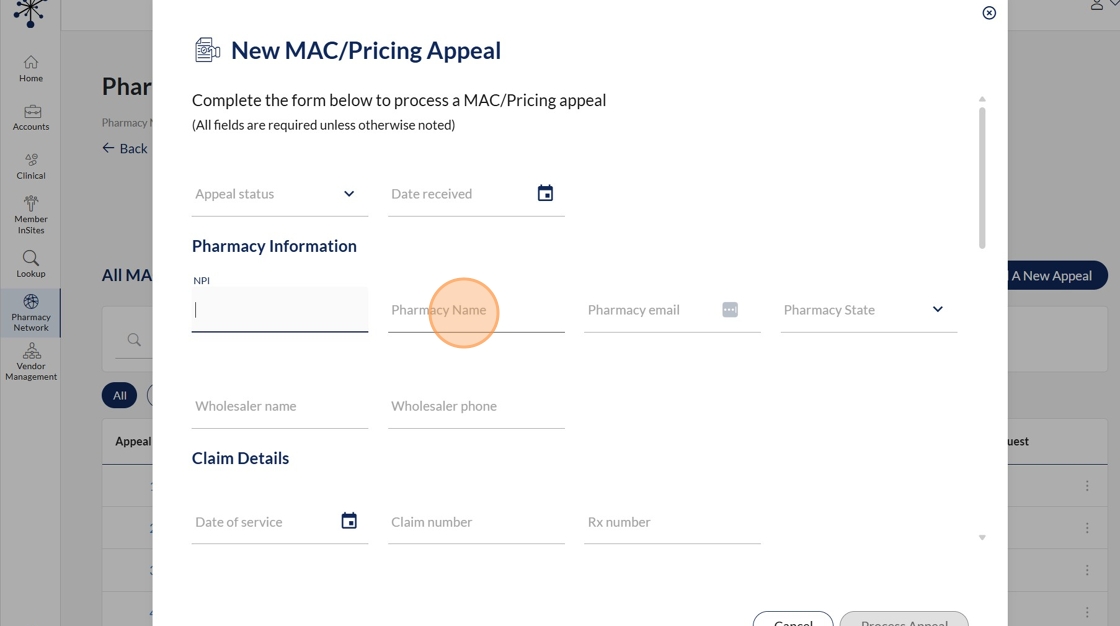
12. Users will enter the pharmacy name under the pharmacy name field.
13. Users will enter the email address corresponding to the pharmacy.
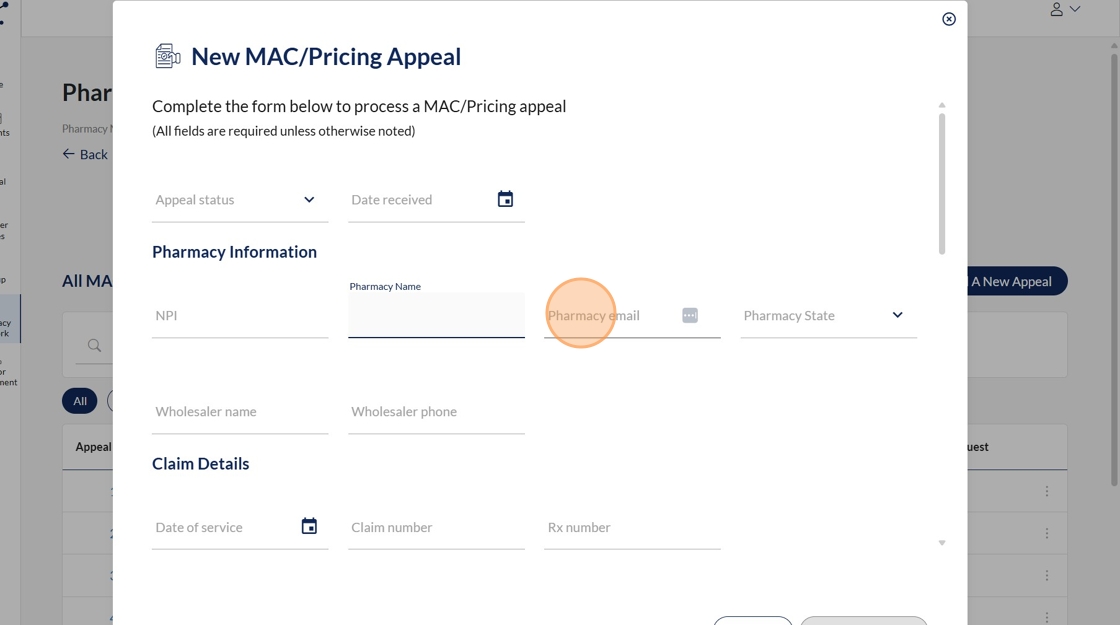
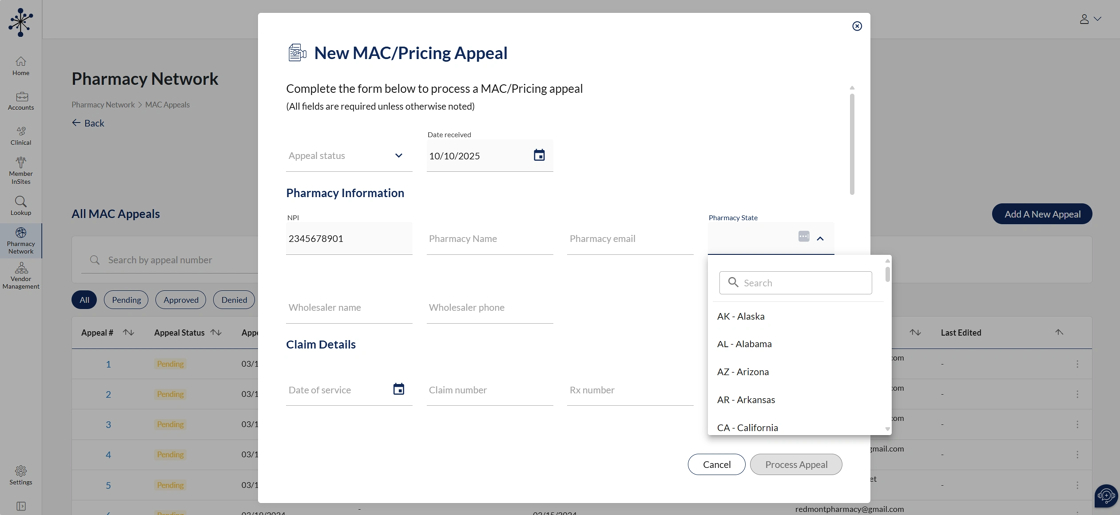
14. Users have a drop down field to select the corresponding pharmacy state.
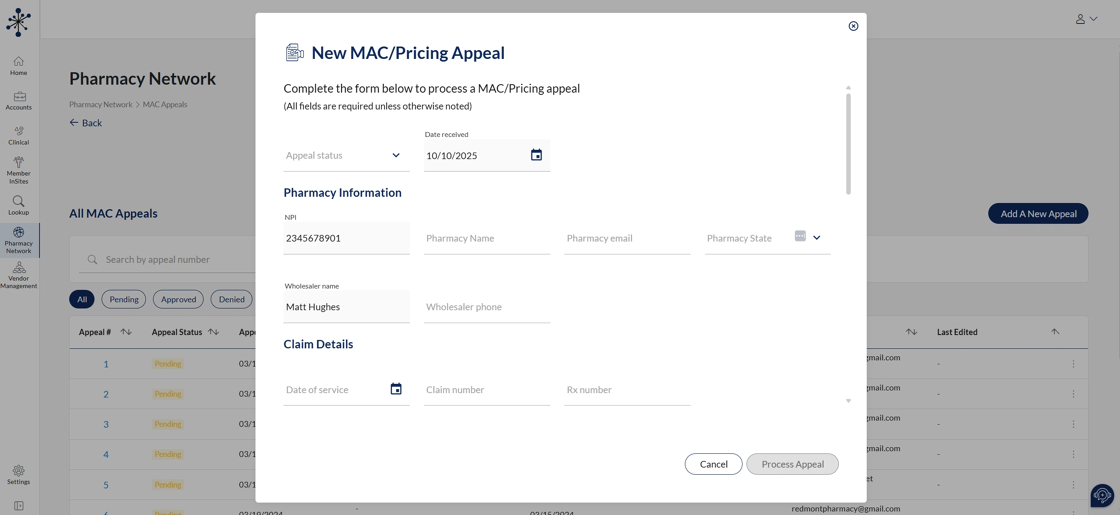
15. Users will enter the wholesaler name under this field.
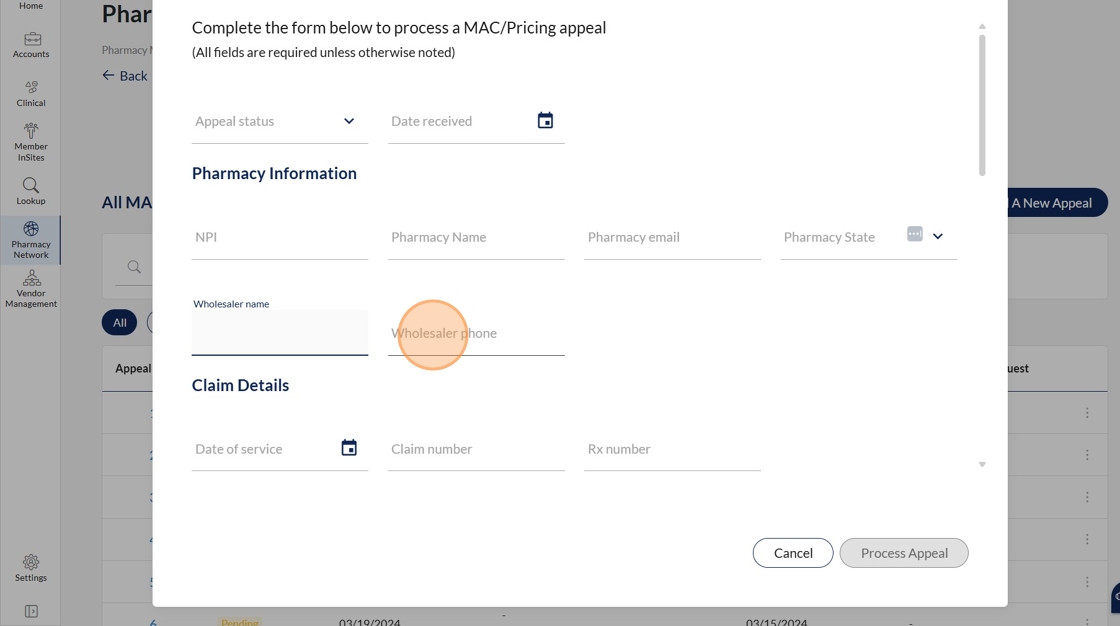
16. Users will enter the wholesaler phone number under this field.
17. Users will pick a date under this field for date of service.
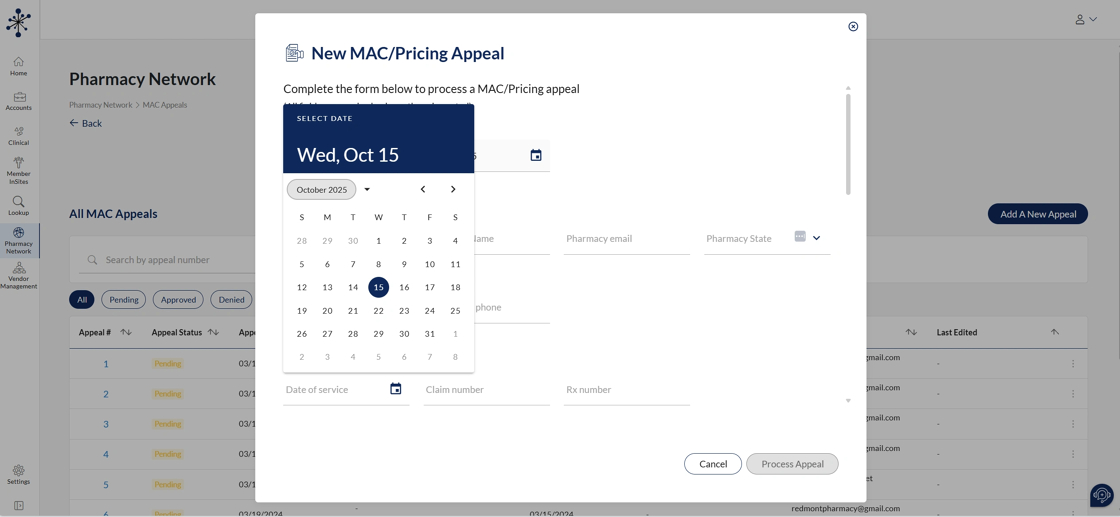
18. Users will enter the claim number under this field.
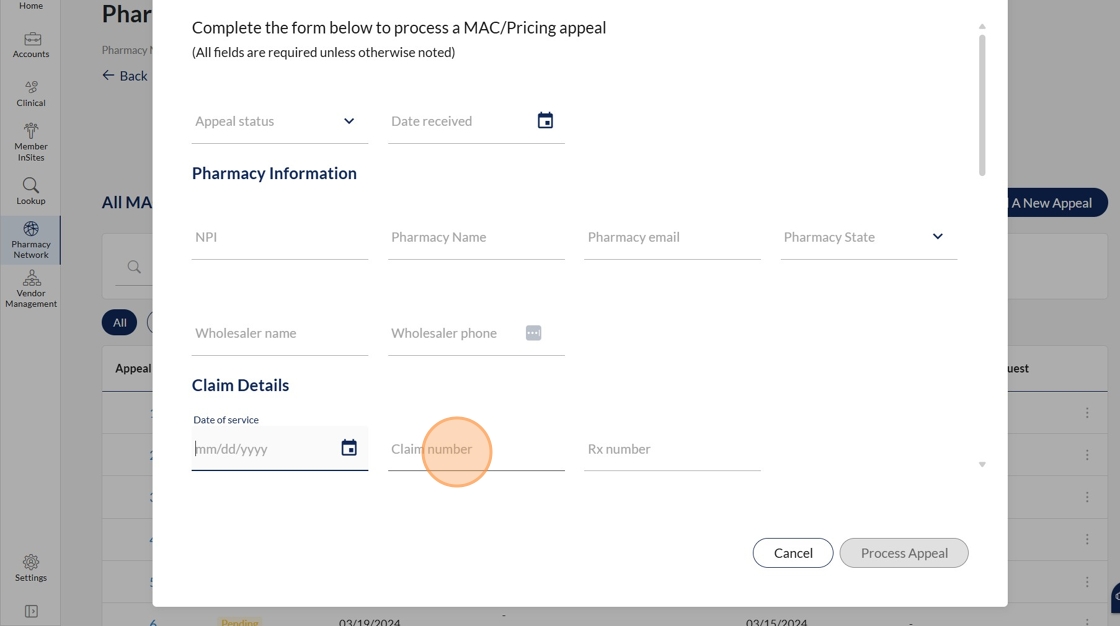
19. Users will enter the Rx number under this field.
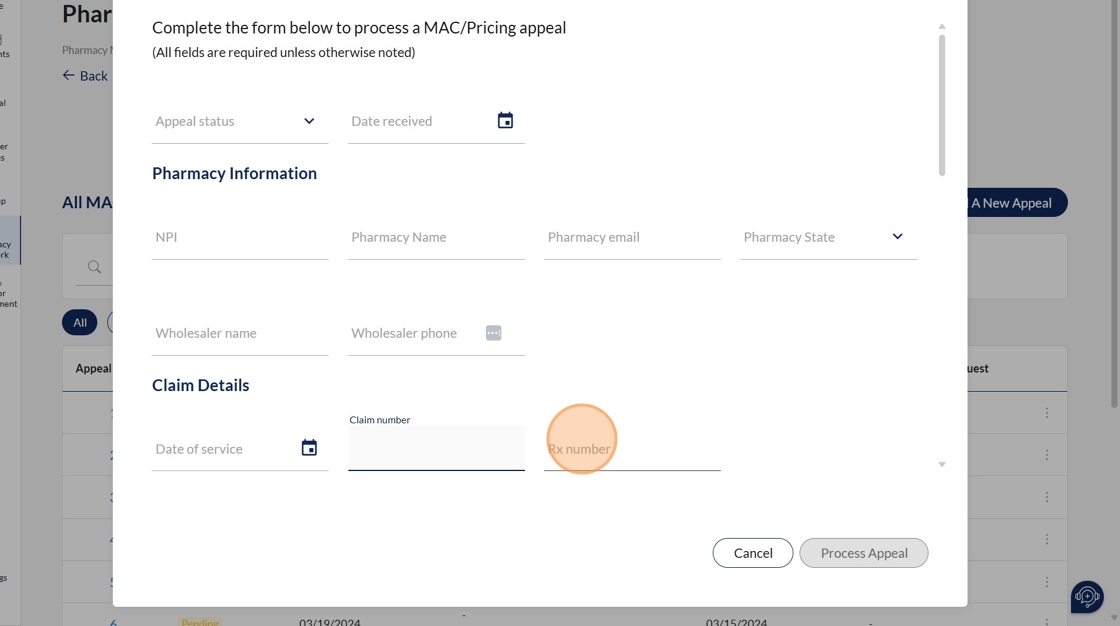
20. Users will enter the NDC number on this field.
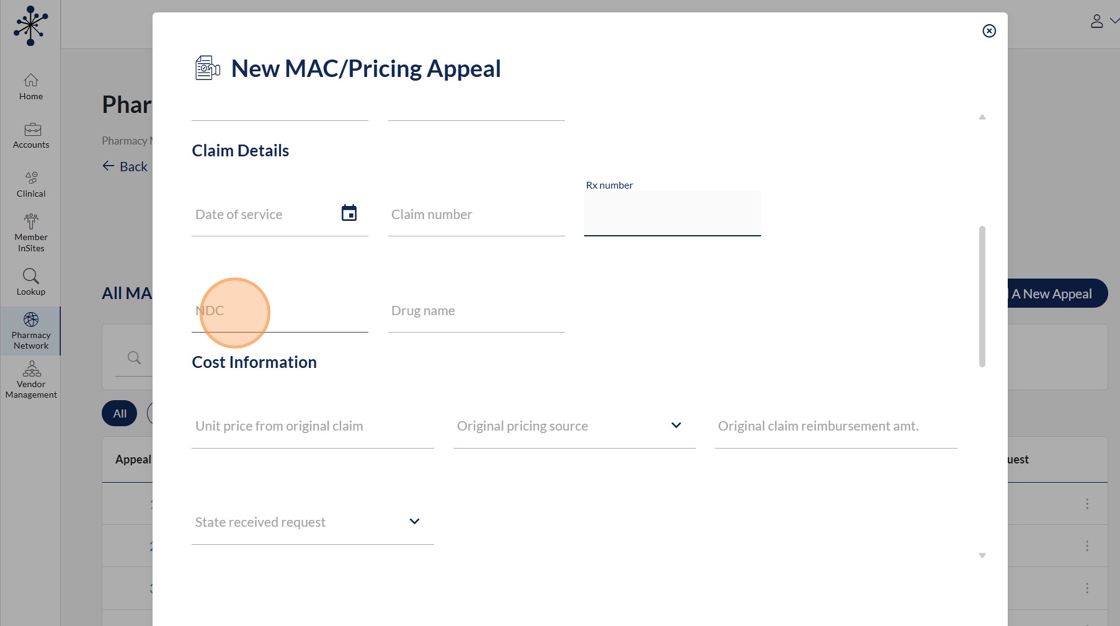
21. Users will enter the drug name under this field.
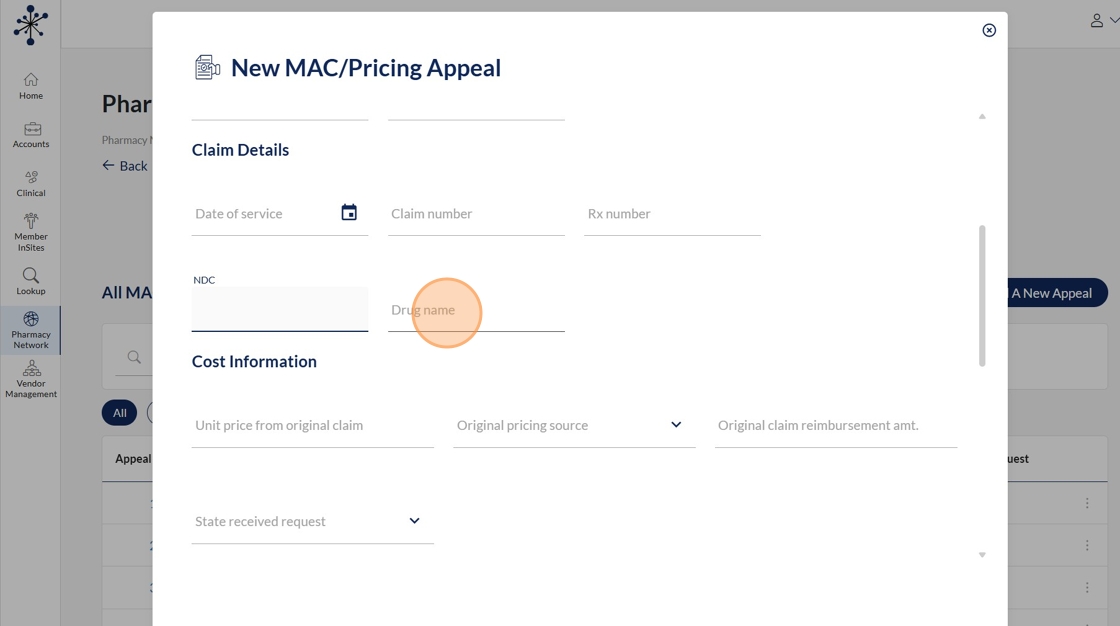
22. Users will enter the unit price from original claim under this field.
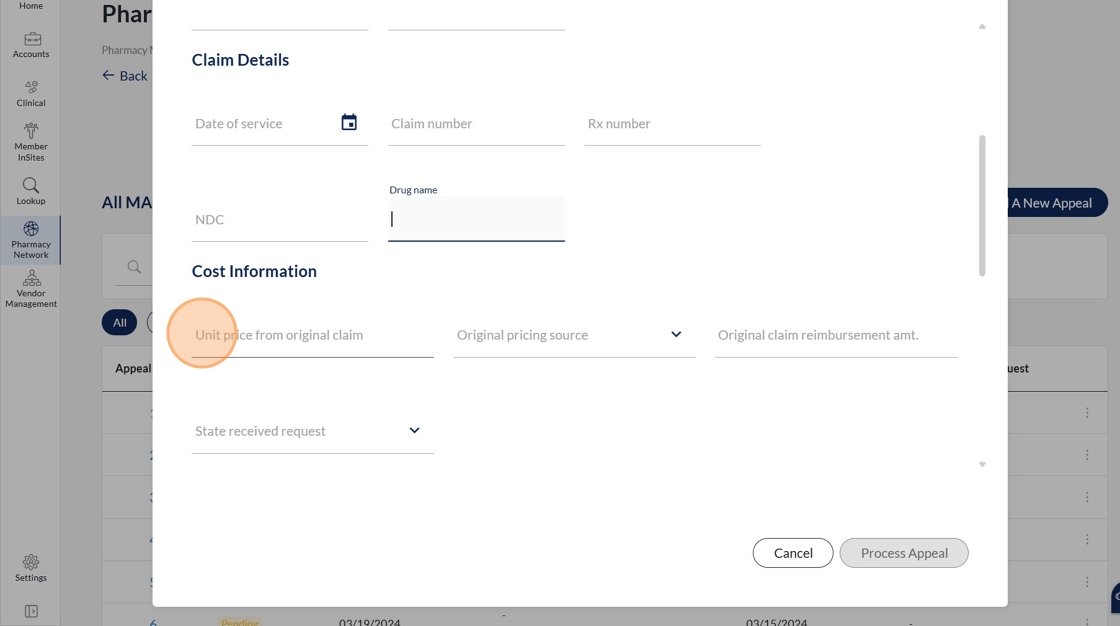
23. Users will have a drop down option to enter the original pricing source under this field.
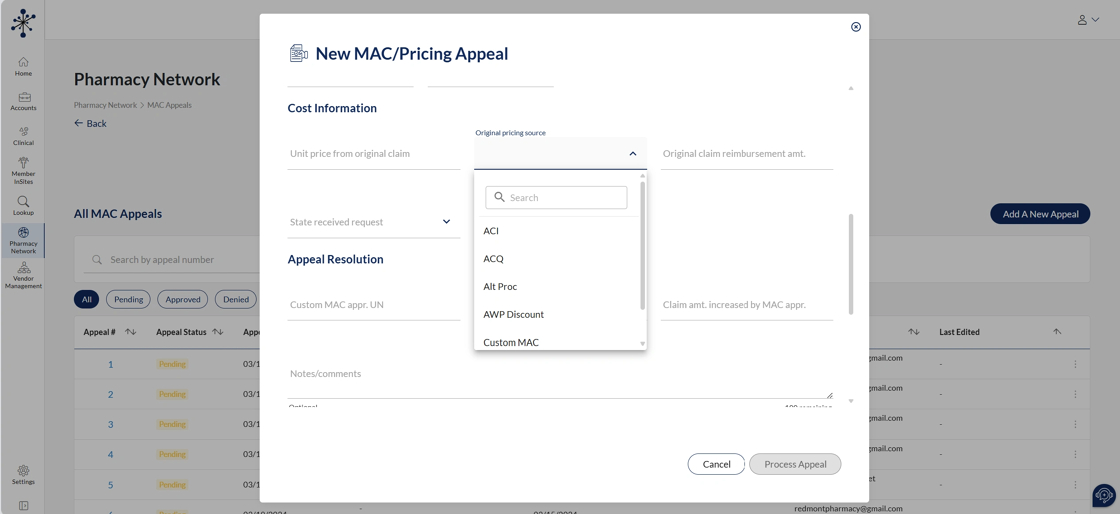
24. Users will enter the original claim reimbursement amount under this field.
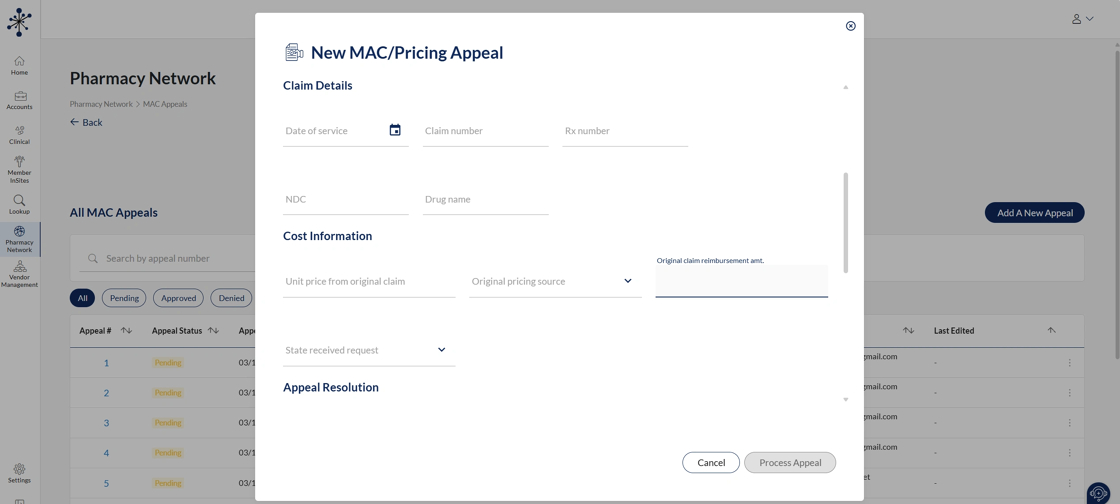
25. Users will enter whether this was a state received request under this field.
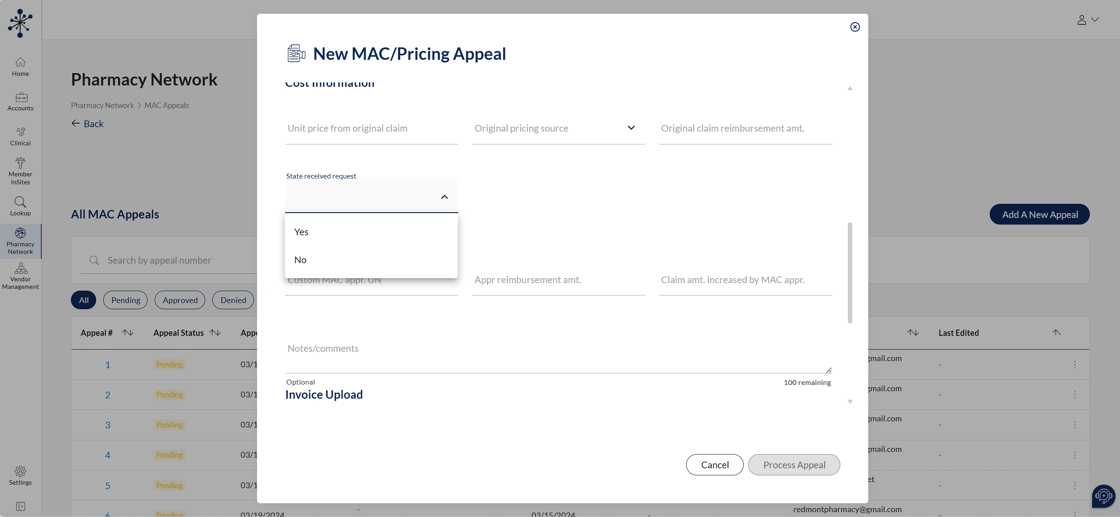
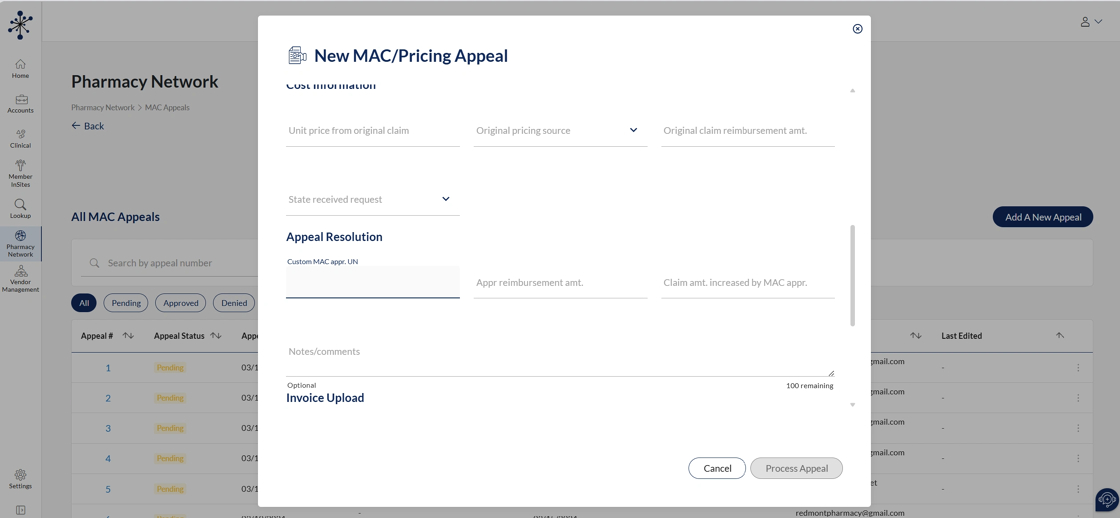
26. Users will enter the custom mac appr. un under this field.
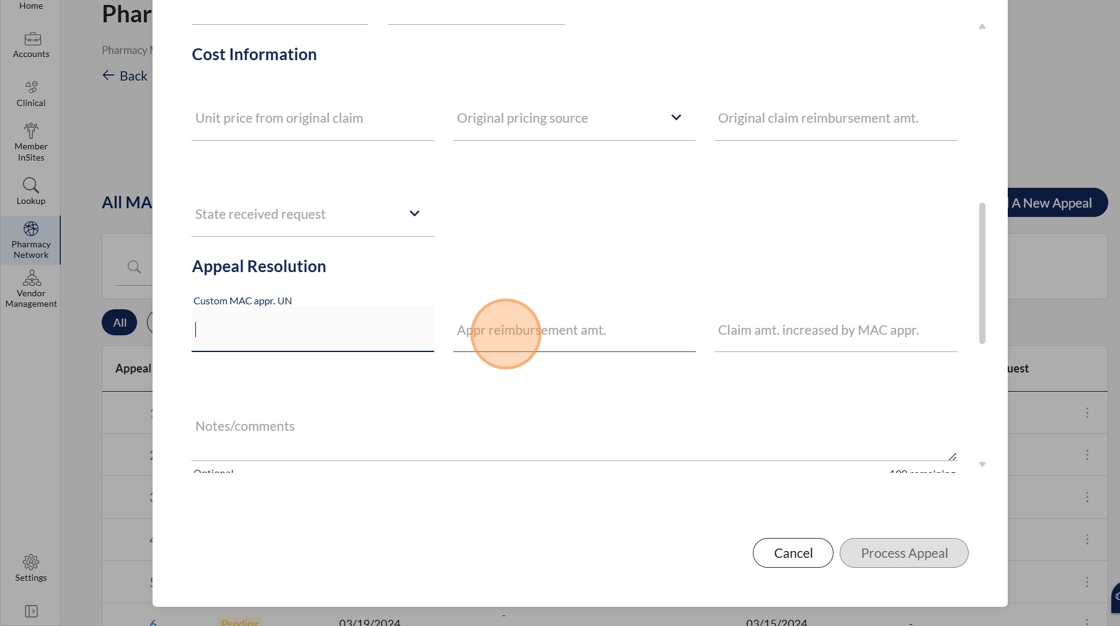
27. Users will enter the approximate reimbursement amount in this field.
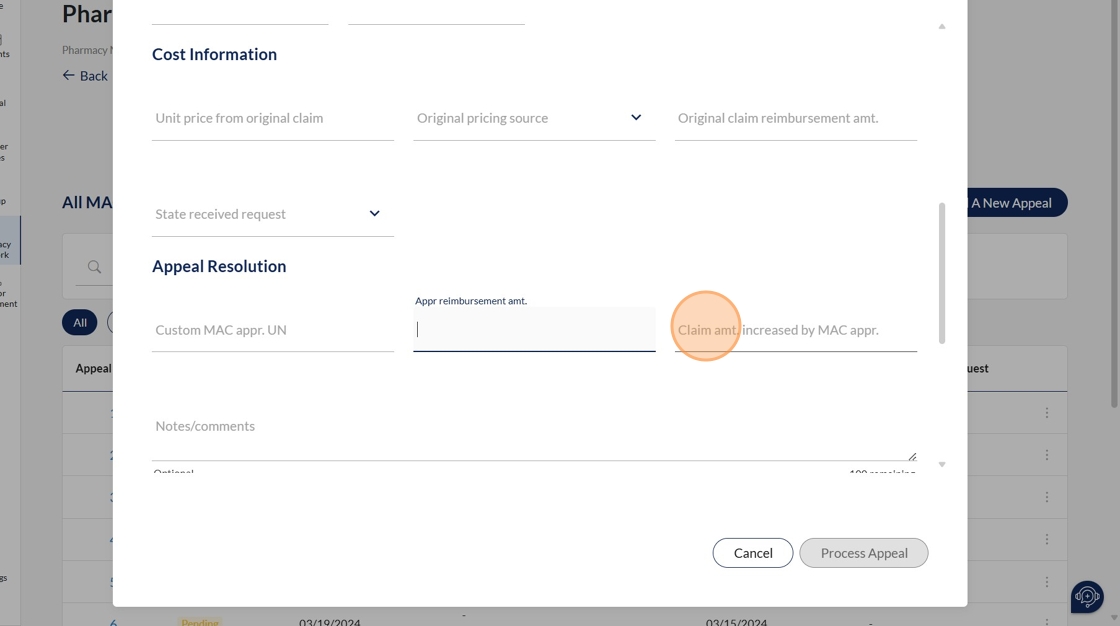
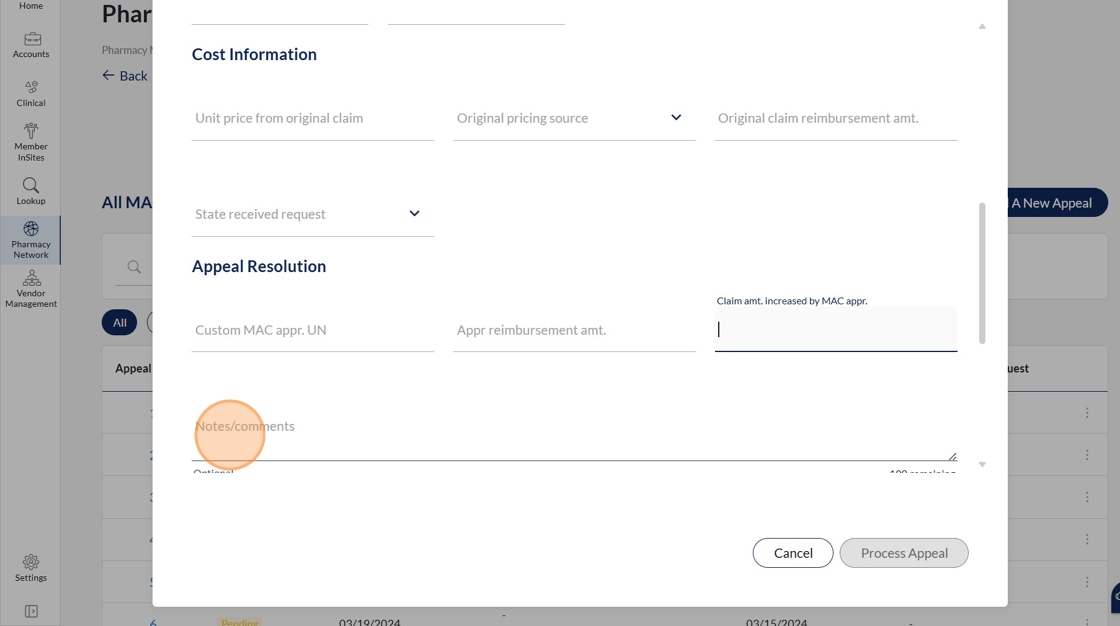
28. Users will enter the claim amount increased by mac appr. in this field
29. Users will enter information in the notes/comments section. This section is optional.
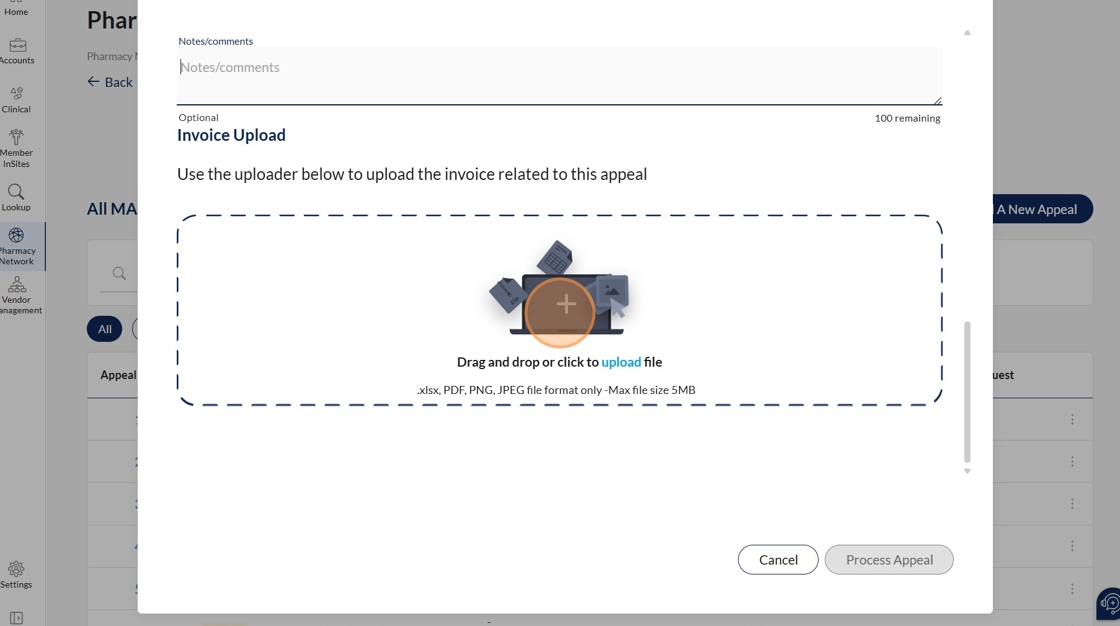
30. As part of the mac appeal process users will enter their invoice file in this uploader section. Users can drag and drop a file or click on the plus sign which will allow them to select their desired file.
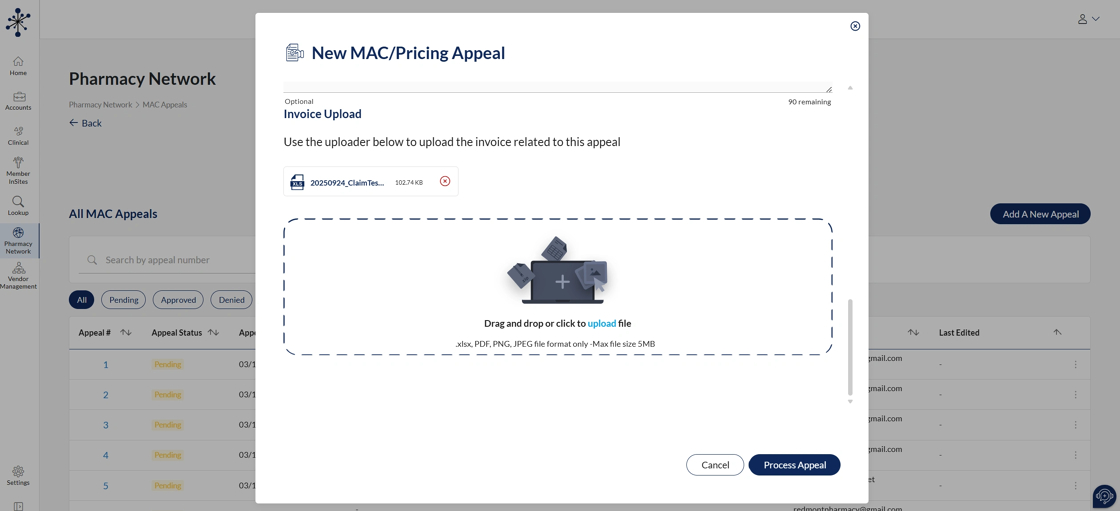
31. After uploading the invoice file users will click on the process appeal to finish completing the appeal process.
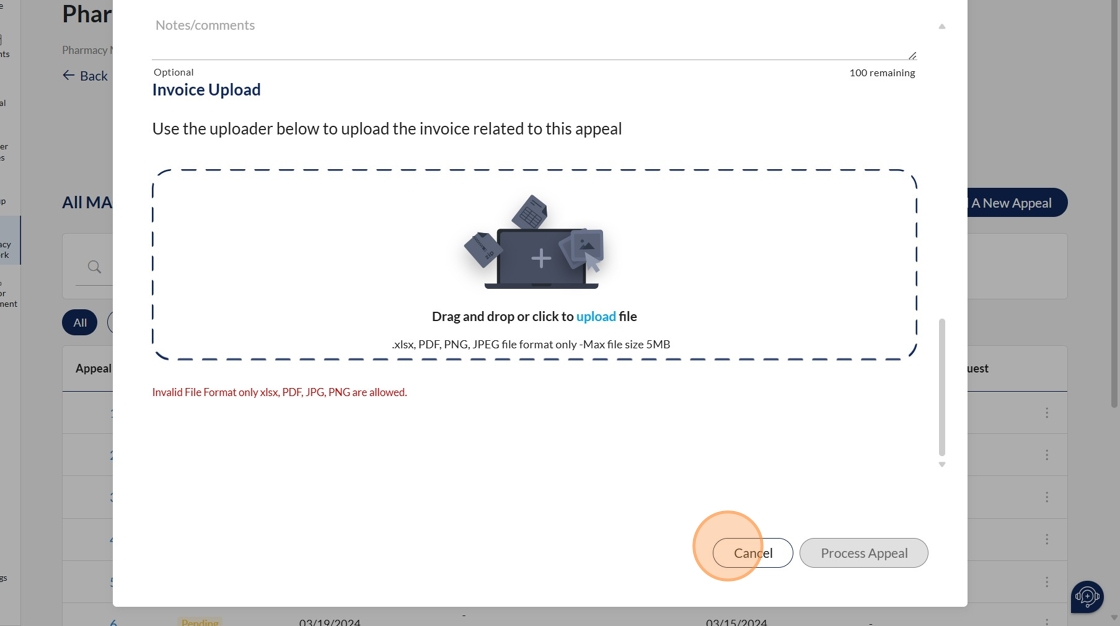
32. Clicking cancel will take users back to the main mac appeals home page.
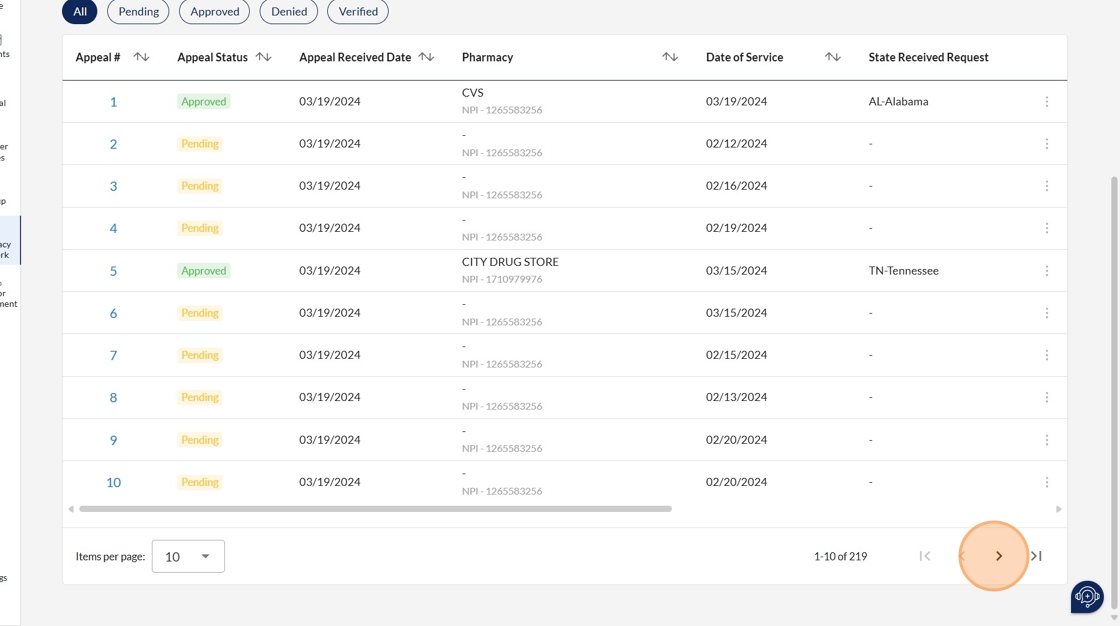
33. When users are done completing the mac appeals process, they can search for their mac appeal on the main mac appeals table on the home page.
Made with Scribe